# Ejemplo 6

## Uso del switch magnetico **KY-021** en el ESP32

### Descripción&#x20;

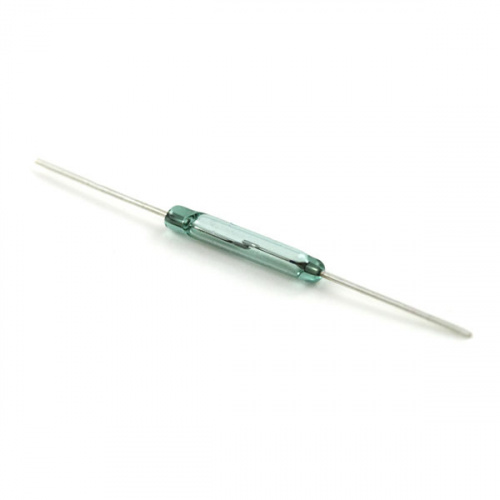
Este ejemplo fue adaptado de la pagina **Grove - Magnetic Switch** ([link](https://wiki.seeedstudio.com/Grove-Magnetic_Switch/)) para el ESP32. En este, se emplea un switch magnetico (Reed switch) el cual se abre o cierra dependiendo de la presencia de un campo magnetico:

<figure><img src="https://cdn.sparkfun.com/r/500-500/assets/parts/1/7/8/4/08642-02-L.jpg" alt="" width="188"><figcaption></figcaption></figure>

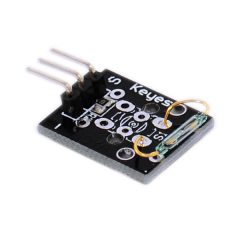
Este switch hace parte de un modulo **KY-021 MINI MAGNETIC REED SWITCH MODULE** ([link](https://arduinomodules.info/ky-021-mini-magnetic-reed-switch-module/)) el cual es conectado directamente usando cables al ESP32 como lo veremos en breve.

&#x20;

<figure><img src="https://arduinomodules.info/wp-content/uploads/KY-021_mini_magnetic_reed_switch_module_arduino-240x240.jpg" alt=""><figcaption></figcaption></figure>

El programa lo que hace es encender y apagar el led que viene integrado con la ESP32 cuando hay un iman cercano que activa o desactiva el switch magnetico al acercarse o alejarse.

### Componentes

La siguiente tabla muestra los componentes principales del circuito a montar:

<table><thead><tr><th width="252.33333333333331">Componentes</th><th width="107">Cantidad</th><th>Observaciones</th></tr></thead><tbody><tr><td>ESP32</td><td>1</td><td></td></tr><tr><td>KY-021 MINI SWITCH</td><td>1</td><td>Disponible en el <strong>37 sensor Kit</strong>. Para mas información sobre este puede consultar la pagina <strong>KY-021 MINI MAGNETIC REED SWITCH MODULE</strong> (<a href="https://arduinomodules.info/ky-021-mini-magnetic-reed-switch-module/">link</a>)</td></tr></tbody></table>

### Conexión

La conexión entre el sensor de ultrasonido se muestra en la siguiente tabla:

| ESP32 | KY-021 MINI SWITCH |
| ----- | ------------------ |
| 3.3V  | Vin                |
| GPIO4 | S                  |
| GND   | GND (**-**)        |

#### Esquematico

A continuación se muestra el esquematico del circuito:

<figure><img src="https://4115294714-files.gitbook.io/~/files/v0/b/gitbook-x-prod.appspot.com/o/spaces%2FxugokskCzICXfnqSP3ui%2Fuploads%2FWFXGeyQ1UEzQT31hkWzy%2Fesp32_reel_digital_esquem%C3%A1tico.png?alt=media&#x26;token=a9ba03f1-db68-4eed-aca1-f4c1ae178c38" alt=""><figcaption></figcaption></figure>

#### Conexión

A continuación se muestra la conexión entre los componentes:

<figure><img src="https://4115294714-files.gitbook.io/~/files/v0/b/gitbook-x-prod.appspot.com/o/spaces%2FxugokskCzICXfnqSP3ui%2Fuploads%2FsG0W9ROXIzZlp57kaW8J%2Fesp32_reel_digital_bb.png?alt=media&#x26;token=85648c7a-6c9a-463c-854f-9a44b329890a" alt=""><figcaption></figcaption></figure>

#### Archivo Fritzing

### Pasos previos si se usa platformio

1. Configurar en Platformio la plataforma a emplear eligiendo como dispositivo el **ESP32** tal y como se resume en la siguiente tabla:

<table><thead><tr><th width="199">Parametro</th><th>Valor</th></tr></thead><tbody><tr><td><strong>Name</strong></td><td>Nombre del proyecto (REED-SWITCH-ESP32 para este ejemplo)</td></tr><tr><td><strong>Board</strong></td><td>NodeMCU-32S (Board disponible en el laboratorio)</td></tr><tr><td><strong>Framework</strong></td><td>Arduino (Es el que hemos manejado)</td></tr></tbody></table>

2. Agregue las librerias necesarias: En nuestro caso no fue necesario agregar ninguna libreria para este ejemplo.

Finalmente una vez hecho lo anterior, si todo esta bien, el archivo **platform.ini** se vera de la siguiente forma:

```ini
; PlatformIO Project Configuration File
;
;   Build options: build flags, source filter
;   Upload options: custom upload port, speed and extra flags
;   Library options: dependencies, extra library storages
;   Advanced options: extra scripting
;
; Please visit documentation for the other options and examples
; https://docs.platformio.org/page/projectconf.html

platform = espressif32
board = nodemcu-32s
framework = arduino
```

3. Configurar el monitor serial.

### Programa (implementado en el IDE de Arduino)

A continuación se muestra el programa que se ejecuta en el ESP32, este el cual basicamente es el mismo programa implementado para el Arduino UNO pero empleando otros pines. Si este se hubiese implementado en platformio adicionalmente el **main.cpp** tendria incluida la libreria al principio:

```arduino
#include <Arduino.h>
```

En nuestro ejemplo como la implementación se hizo en el IDE de Arduino no se incluye esta libreria de modo que queda como se muestra a continuación.

```arduino
/*macro definitions of magnetic pin and LED pin*/
#define MAGNECTIC_SWITCH 4
#define LED LED_BUILTIN //the on board LED of the Arduino or Seeeduino
 
void setup()
{
    pinsInit();
    Serial.begin(9600);
}
 
void loop() 
{
    if(isNearMagnet())//if the magnetic switch is near the magnet?
    {
        turnOnLED();
        Serial.println("Switch closed");
    }
    else
    {
        turnOffLED();
        Serial.println("Switch open");
    }
}


void pinsInit()
{
    pinMode(MAGNECTIC_SWITCH, INPUT);
    pinMode(LED,OUTPUT);
}

 
/*If the magnetic switch is near the magnet, it will return ture, */
/*otherwise it will return false                                */
boolean isNearMagnet()
{
    int sensorValue = digitalRead(MAGNECTIC_SWITCH);
    if(sensorValue == HIGH)//if the sensor value is HIGH?
    {
        return true;//yes,return ture
    }
    else
    {
        return false;//no,return false
    }
}

void turnOnLED()
{
    digitalWrite(LED,HIGH);
}

void turnOffLED()
{
    digitalWrite(LED,LOW);
}
```

### Referencias

1. <https://wiki.seeedstudio.com/Grove-Magnetic_Switch/>
2. <https://learn.sparkfun.com/tutorials/reed-switch-hookup-guide/all>
3. <https://www.adafruit.com/category/677>
4. <https://cdn.sparkfun.com/assets/8/b/d/4/f/59165-1-U-00-A_Datasheet.pdf>
5. <https://www.reed-sensor.com/general-reed-switch-faq/>
6. <https://elosciloscopio.com/tutorial-interruptor-laminas-lengueta-arduino-reed-switch-esp8266-esp32/>
7. <https://randomnerdtutorials.com/esp32-door-status-telegram/>
8. <https://esp32io.com/tutorials/esp32-door-sensor>
9. <https://wiki.dfrobot.com/><br>


---

# Agent Instructions: Querying This Documentation

If you need additional information that is not directly available in this page, you can query the documentation dynamically by asking a question.

Perform an HTTP GET request on the current page URL with the `ask` query parameter:

```
GET https://udea-iot.gitbook.io/introduccion-al-iot/interaccion-con-el-mundo-fisico/ejemplos/esp32/ejemplo-6.md?ask=<question>
```

The question should be specific, self-contained, and written in natural language.
The response will contain a direct answer to the question and relevant excerpts and sources from the documentation.

Use this mechanism when the answer is not explicitly present in the current page, you need clarification or additional context, or you want to retrieve related documentation sections.
